
FileHostReviews is an independent review site. We may earn a commission if you purchase through our links, at no extra cost to you.
TakeFile is a file-hosting service whose Premium tier advertises fast downloads. We tested a Premium account on a 1 Gbps symmetric fiber connection with Google Chrome and JDownloader 2 (JD2), and compared the advertised 90-day price with two checkout totals. Our testing methodology explains the test environment and evaluation approach. Read the testing methodology.
Quick verdict: TakeFile Premium reached 9.0 MB/s for one Chrome file and an average combined rate of 26.32 MiB/s across four JD2 downloads. In the tested 90-day checkouts, the $47.99 advertised price became $53.75 by card and $67.64 by PayPal. The subscription covers the main takefile.link domain and allows up to 65 GB over the preceding 48 hours.
Key Benchmark Findings & Overview
The table below summarizes every headline result from our 2026 test run. All speeds were recorded on a 1 Gbps symmetric gigabit fiber line.
| Metric | Result |
|---|---|
| Test connection | 1 Gbps symmetric gigabit fiber |
| Free tier speed | 45–55 KB/s (48.0 KB/s captured) |
| Free tier, 767 MB file | ~5 hours estimated |
| Premium, Chrome (1 file) | 9.0 MB/s |
| Premium, Chrome (2 parallel files) | 14.0 MB/s total (7.2 + 6.8 MB/s) |
| Premium, Chrome (3 parallel files) | 19.1 MB/s total (5.5 + 6.7 + 6.9 MB/s) |
| Premium, JDownloader 2 | 26.32 MiB/s average, 32.02 MiB/s current combined rate |
| Transfer limit | 65 GB per rolling 48-hour window |
| 90-day base price | $47.99 |
| Credit card total | $53.75 (+$5.76, ~12.0%) |
| PayPal total | $67.64 (+$19.65, ~40.9%) |
| Subscription scope | takefile.link only (subdomains excluded) |
Pricing & Real Checkout Costs: Surcharges Uncovered
Advertised Premium plans
| Duration | Advertised price |
|---|---|
| 30 days | $23.99 |
| 60 days | $35.99 |
| 90 days | $47.99 |
| 365 days | $119.99 |
These are the prices displayed in the supplied plan screenshot, before checkout additions. The 90-day card and PayPal totals below were observed on two specific payment routes.
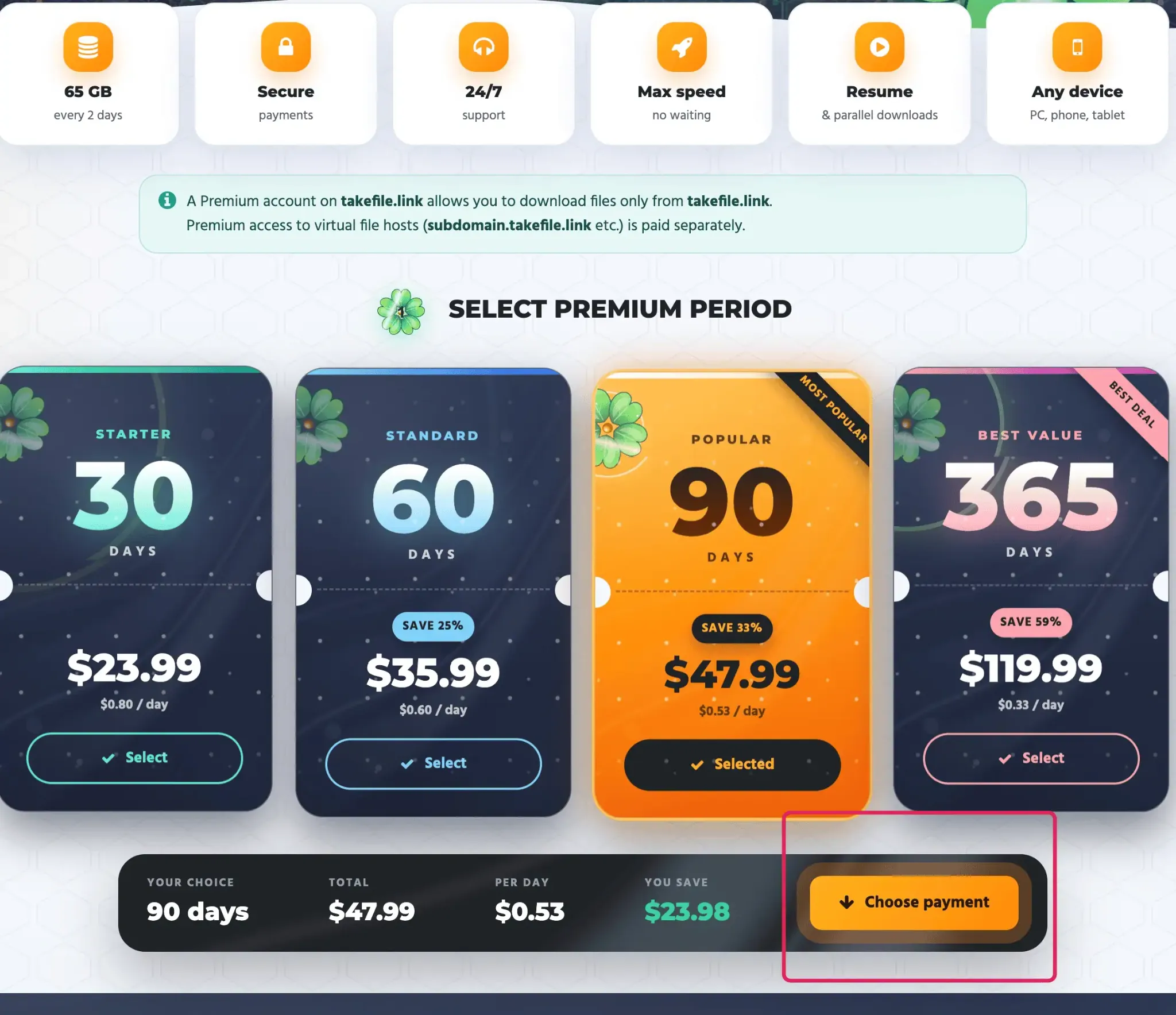
The advertised price of the 90-day plan is $47.99. That figure is only what you pay if no processing fees are applied, which was not the case for either payment method we tested. The final amount depends heavily on how you pay.
Credit Card (+12%) vs PayPal (+40.9% Fees)
| Payment method | Breakdown | Final total | Markup |
|---|---|---|---|
| Advertised price | Base plan | $47.99 | — |
| Credit card | Fees included at checkout | $53.75 | +$5.76 (~12.0%) |
| PayPal | $47.99 base + $8.60 transaction fee + $11.05 intermediary fee | $67.64 | +$19.65 (~40.9%) |
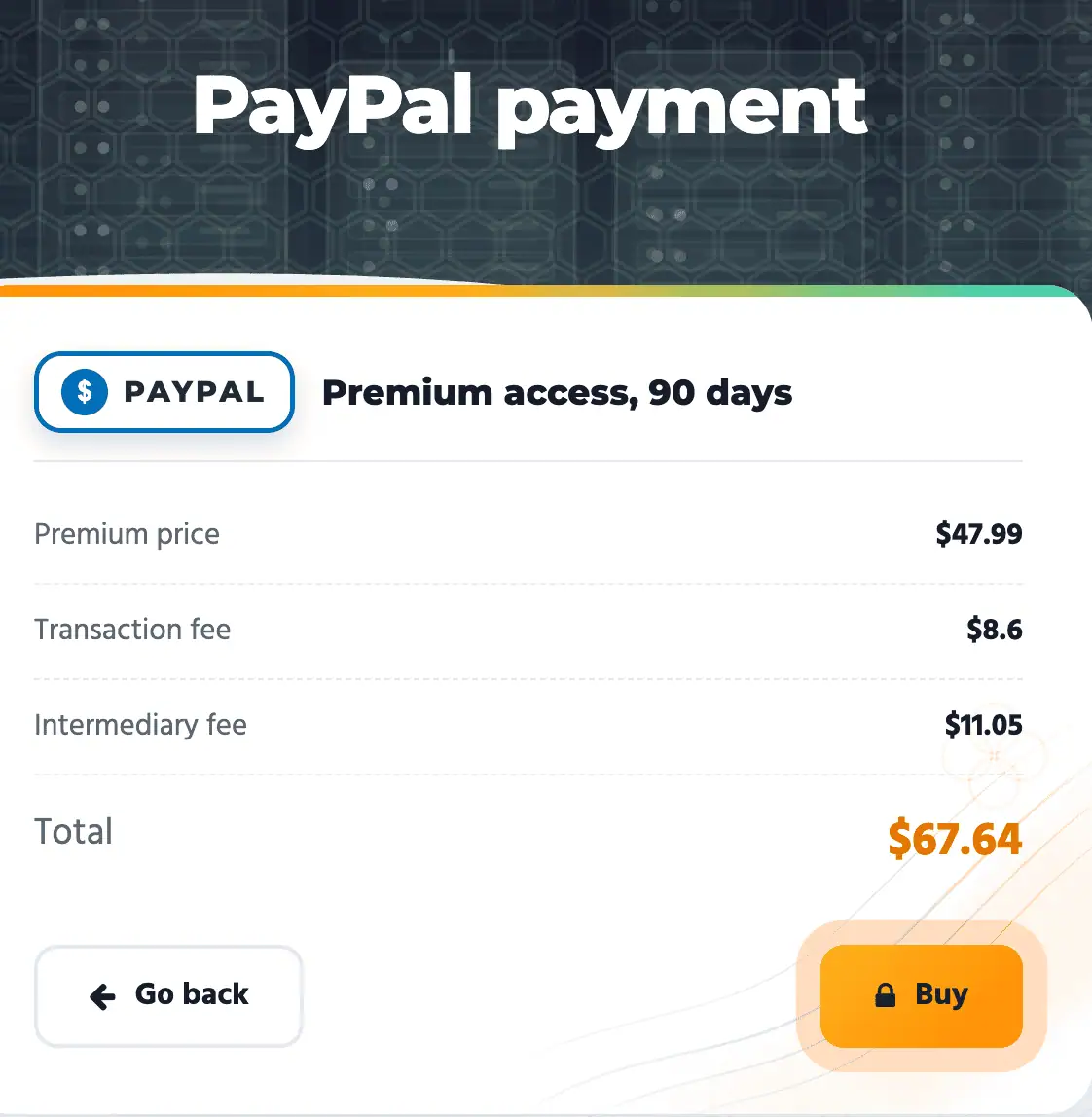
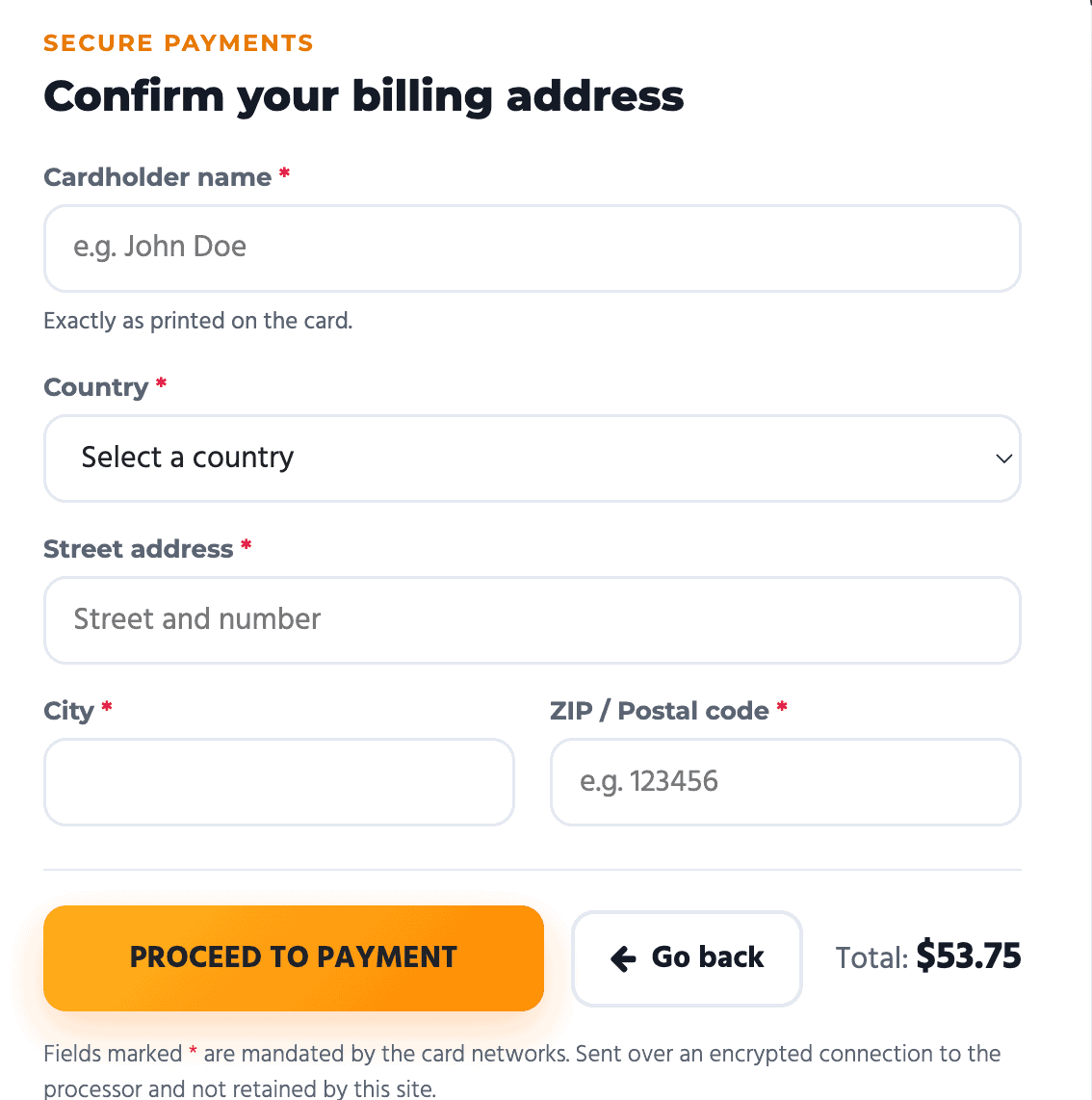
Among the two tested payment routes, PayPal was more expensive. Its $8.60 transaction fee and $11.05 intermediary fee added $19.65 to the advertised price. The card checkout was $13.89 cheaper for the same 90-day plan. Other payment methods were displayed, but their final totals were not tested.
In per-day terms, the 90-day plan costs about $0.60 per day by credit card and about $0.75 per day by PayPal. That is a meaningful gap for the same service.
Subscription Scope: Subdomain Restrictions
A takefile.link Premium subscription covers takefile.link only. Files served from subdomains, which the platform uses for its virtual hosting setup, require separate access and are not unlocked by your main-domain subscription. Before buying, check whether the files you want are on takefile.link itself or on a subdomain. Otherwise you may find that Premium does not cover your downloads.
Bandwidth Quota: Understanding the 65 GB Rolling 48-Hour Limit
TakeFile Premium advertises “65 GB every 2 days.” Our test notes confirm a rolling 48-hour allowance: total downloads within the preceding 48 hours must stay within 65 GB. This is not a separate 65 GB allowance for each calendar day.
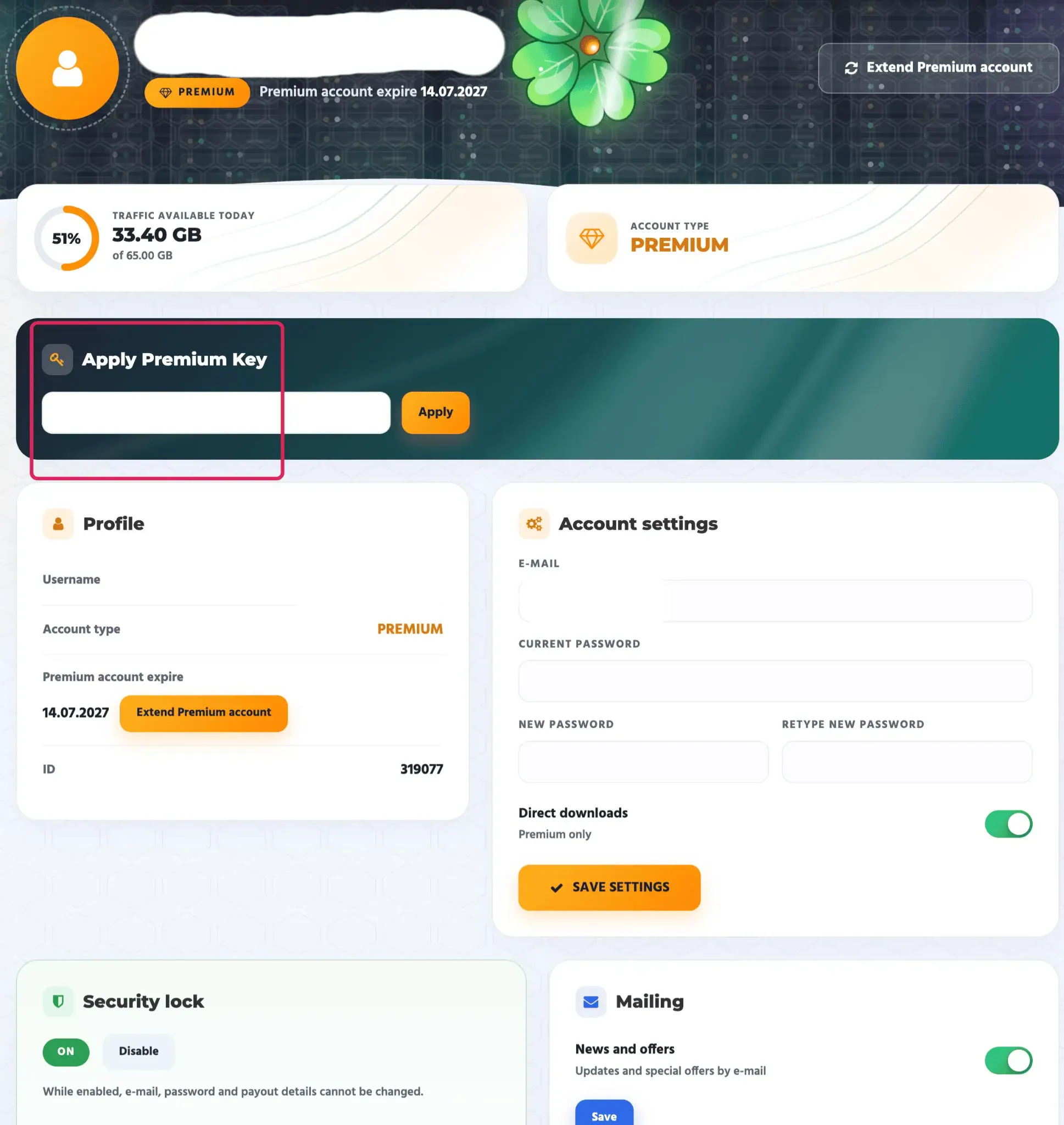
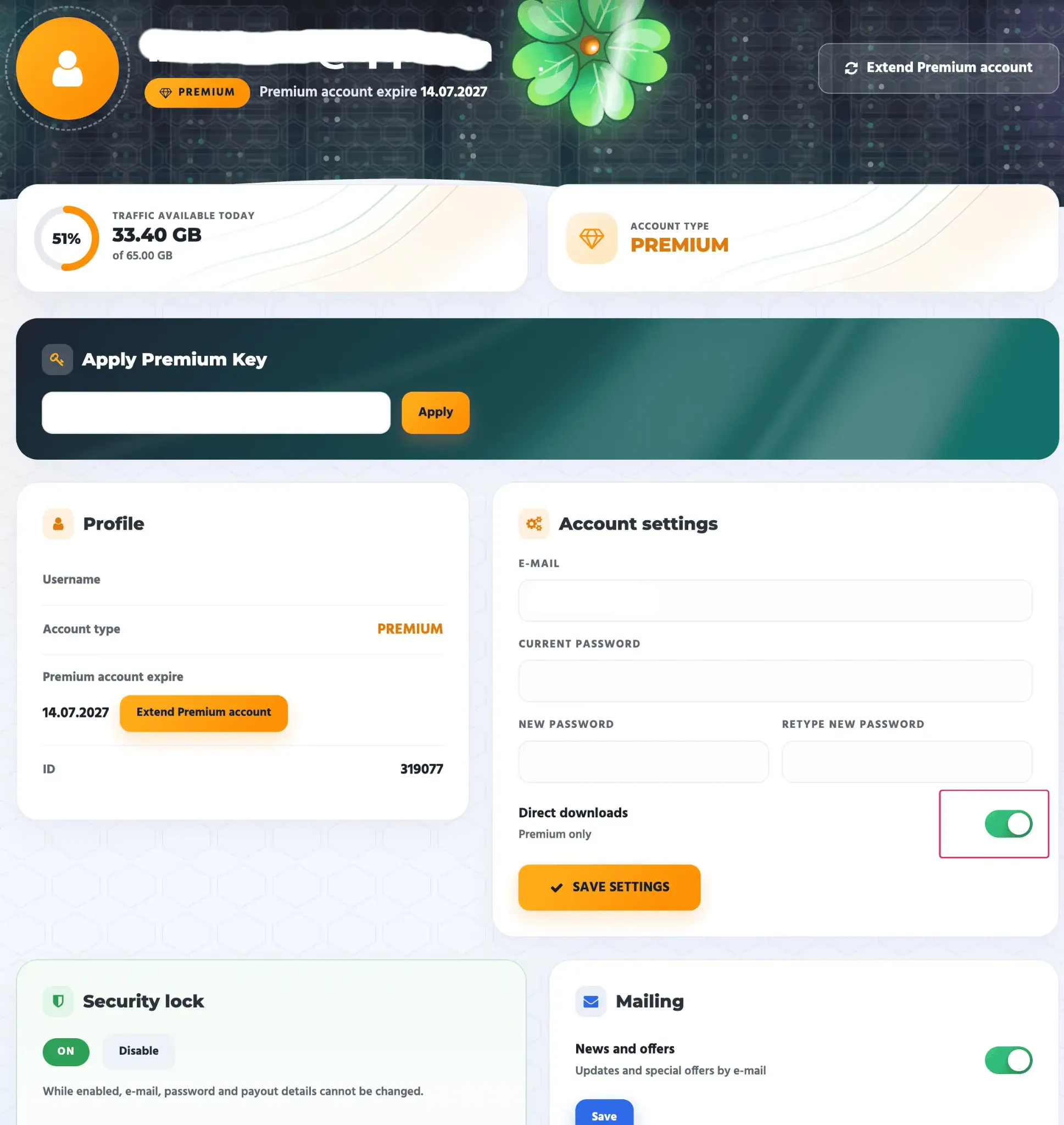
The account dashboard showed 33.40 GB remaining out of 65 GB at the time of capture. That figure is a captured balance, rather than an additional daily allowance.
JDownloader 2 displayed “Unlimited” for the account’s remaining traffic. That display does not establish an unlimited transfer allowance; the advertised 65 GB limit still applies.
Free Tier vs. Premium: Practical Differences
TakeFile’s free downloads were slow, although the download process was straightforward. We observed 45–55 KB/s, and the screenshot shows 48.0 KB/s. For the approximately 767 MB file, Chrome estimated five hours remaining; this was an estimate, not a measured completion time.
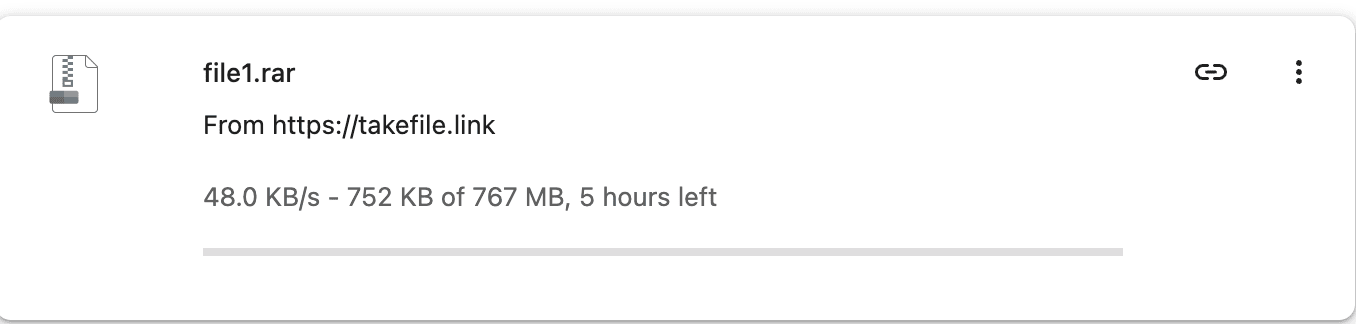
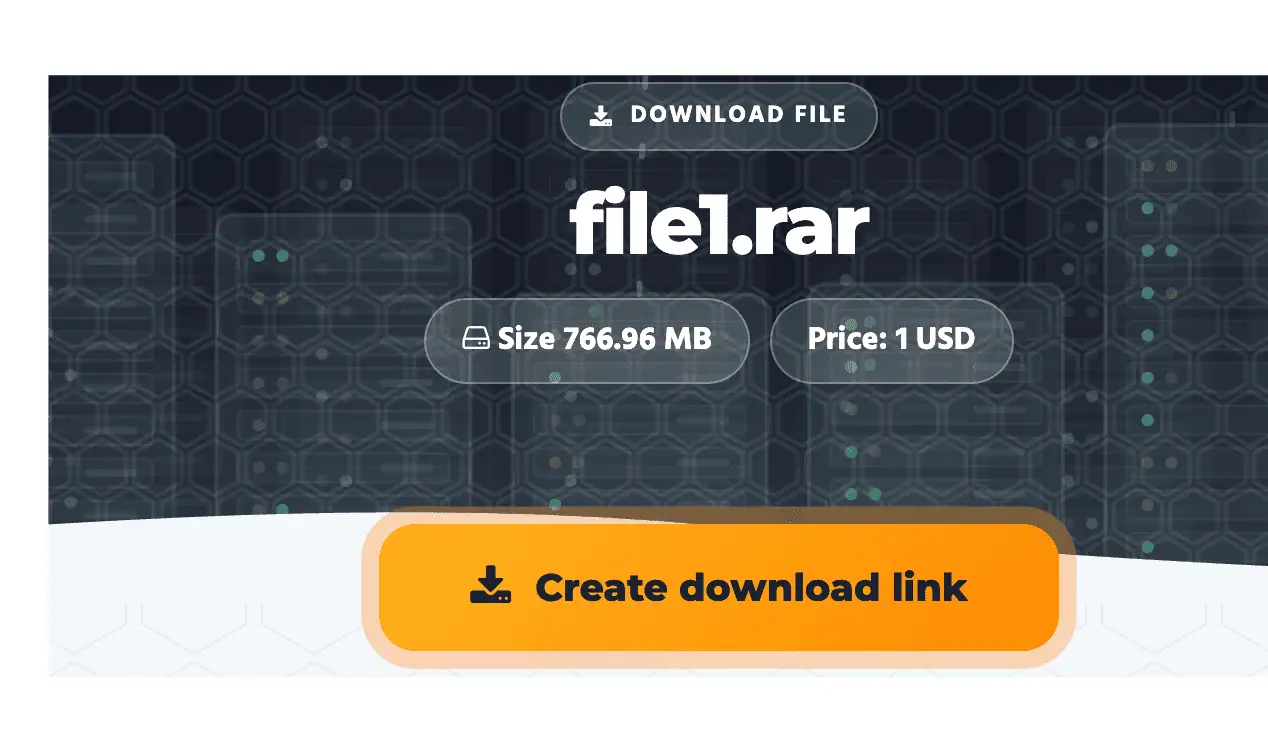
The vendor's comparison graphic claims free users face a countdown timer. In our live test, that was not the case. The download link generated instantly, with no ads, no image CAPTCHA and no countdown. Note that account registration itself does require an hCaptcha. This behavior reflects our test date and could change at any time, but it is a notable gap between advertising and reality.
| Feature | Free | Premium |
|---|---|---|
| Measured speed | 45–55 KB/s (48.0 KB/s captured) | 9.0 MB/s in Chrome; 32.02 MiB/s current across four JD2 files |
| 767 MB file (approx.) | ~5 hours | About 85 seconds at the captured 9.0 MB/s Chrome rate (calculated, not timed). |
| Countdown timer | Advertised, but absent in our test | None |
| Ads | None observed | None |
| Image CAPTCHA | None observed (registration needs hCaptcha) | None |
| Skipping the intermediate page | Not available | Requires "Direct downloads (Premium only)" to be ON |
| Parallel downloads | Impractical at free speeds | Totals scale: 19.1 MB/s with 3 files in Chrome |
| Transfer limit | Not specified in our test | 65 GB per rolling 48 hours |
Free access suits small files where speed does not matter. For anything in the hundreds of megabytes or larger, the free tier's throughput makes Premium effectively mandatory.
Speed Benchmarks: Chrome vs. JDownloader 2
We tested Premium speeds in two ways: through the browser (Chrome) and through the JDownloader 2 download manager. Both ran on the same 1 Gbps symmetric fiber line.
1. Chrome Single & Parallel Downloads (Up to 19.1 MB/s)
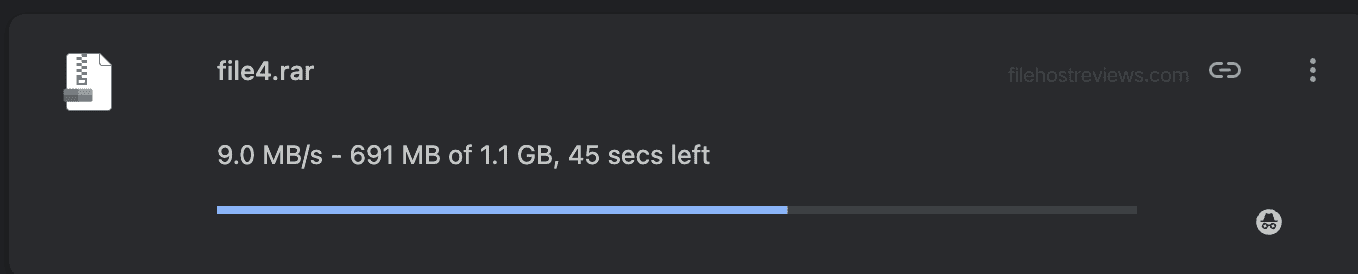
A single-file download in Chrome reached 9.0 MB/s (about 72 Mbps). That is far from saturating a gigabit link, but it is a huge leap over the free tier's 48 KB/s and fast enough for most everyday needs.
Running several downloads at once raised the total throughput noticeably:
| Simultaneous files | Per-file speeds | Combined total |
|---|---|---|
| 1 | 9.0 MB/s | 9.0 MB/s |
| 2 | 7.2 + 6.8 MB/s | 14.0 MB/s |
| 3 | 5.5 + 6.7 + 6.9 MB/s | 19.1 MB/s |
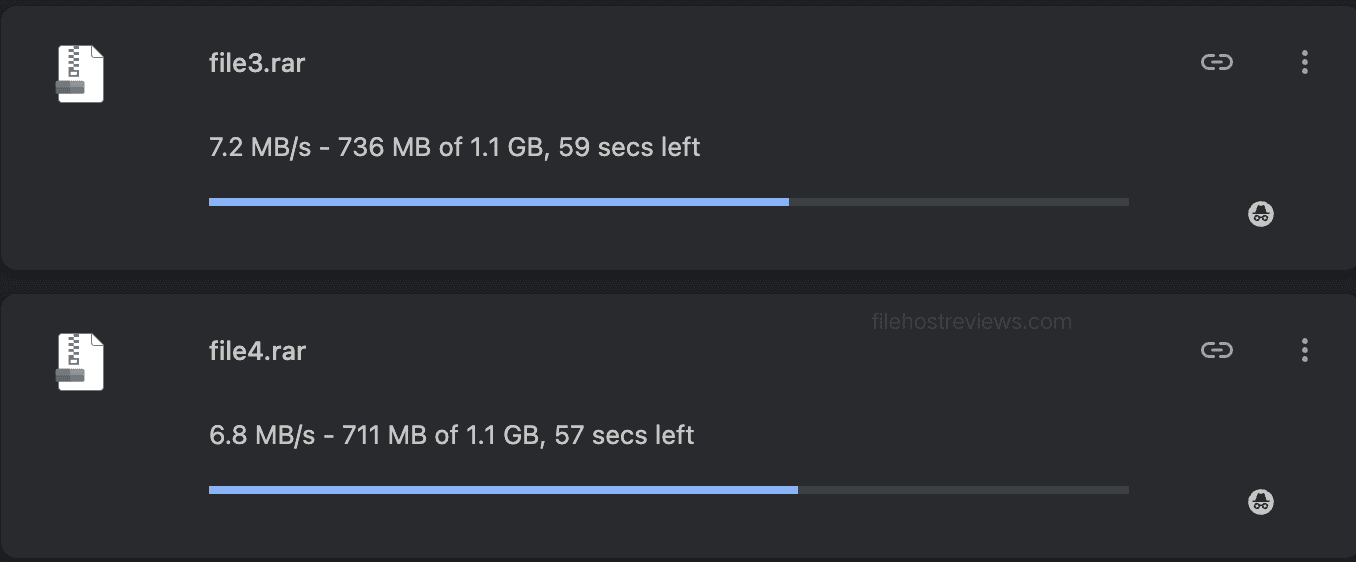
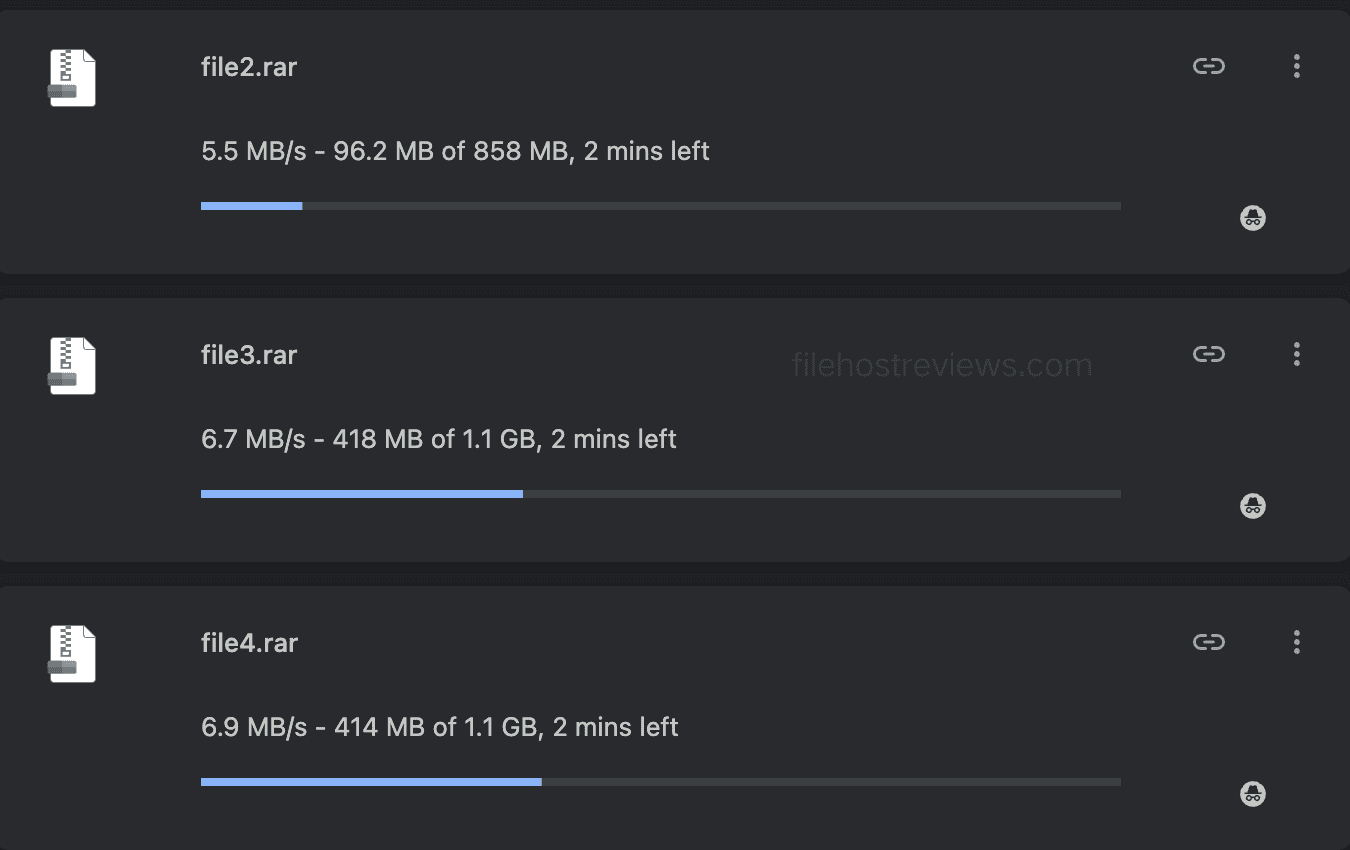
The captured combined rate increased from 9.0 MB/s with one file to 14.0 MB/s with two and 19.1 MB/s with three. The three-file total was a little more than double the single-file reading. These are separate test captures, rather than a guaranteed scaling rule.
2. JDownloader 2: Four Parallel Downloads
The JD2 graph displayed an average combined rate of 26.32 MiB/s and a current combined rate of 32.02 MiB/s while four files were downloading. The average is approximately 27.6 MB/s, about three times the single-file Chrome reading; the workloads differ. The bottom overview refers to the selected package, rather than the complete four-file queue.
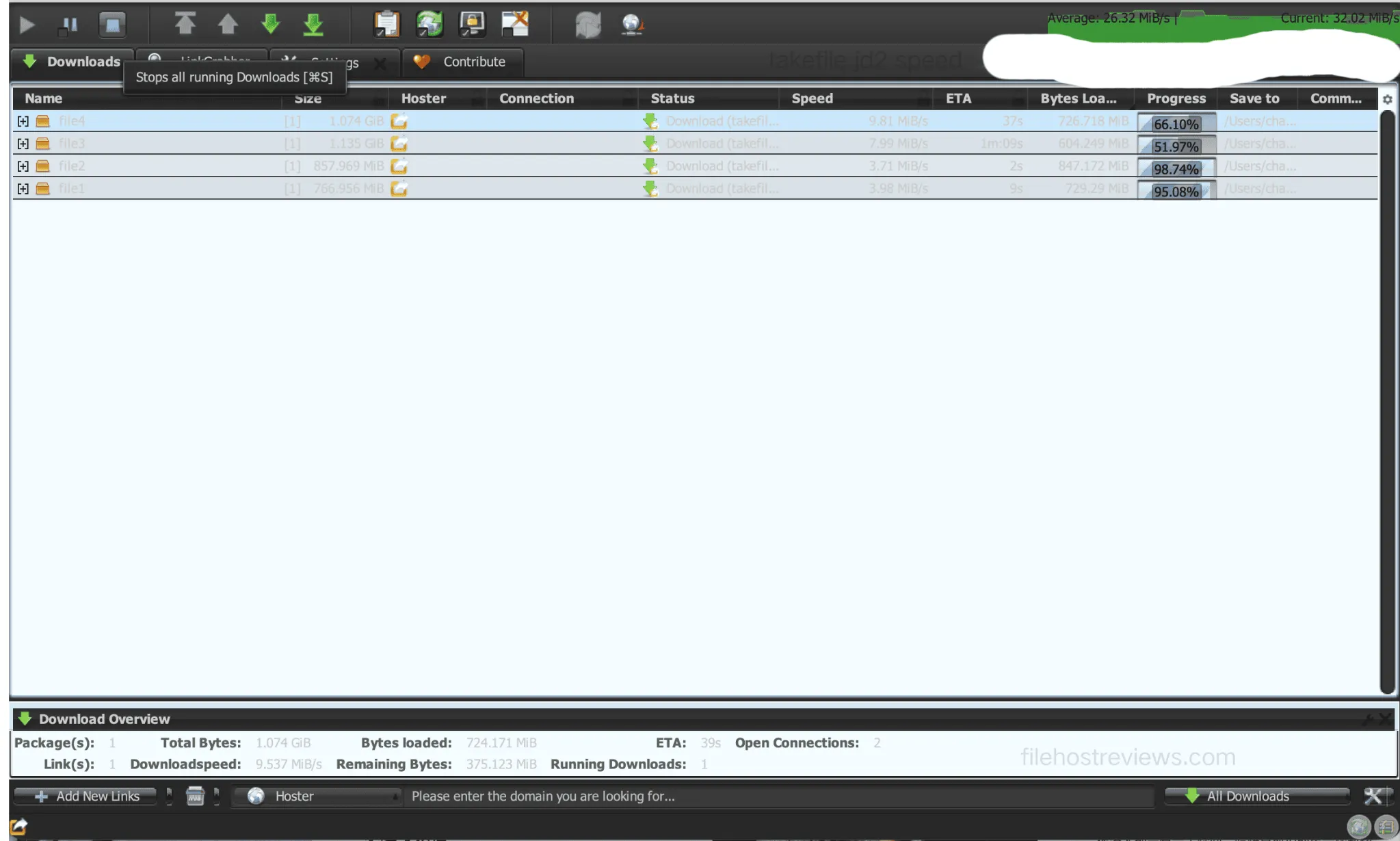
A note on units: Chrome reports MB/s, while JDownloader 2 reports MiB/s (1 MiB ≈ 1.049 MB). We kept each tool's native unit in this article, so keep the difference in mind when comparing numbers. For other hosts that work well with JD2, see our guide to JDownloader-compatible file hosts.
JD2 Displayed “Free Account” During the Test
This is the most confusing quirk we encountered. After adding valid Premium credentials in the JD2 Account Manager, the client displayed:
- Verified logins: Free Account
- Account is ok: Free Account
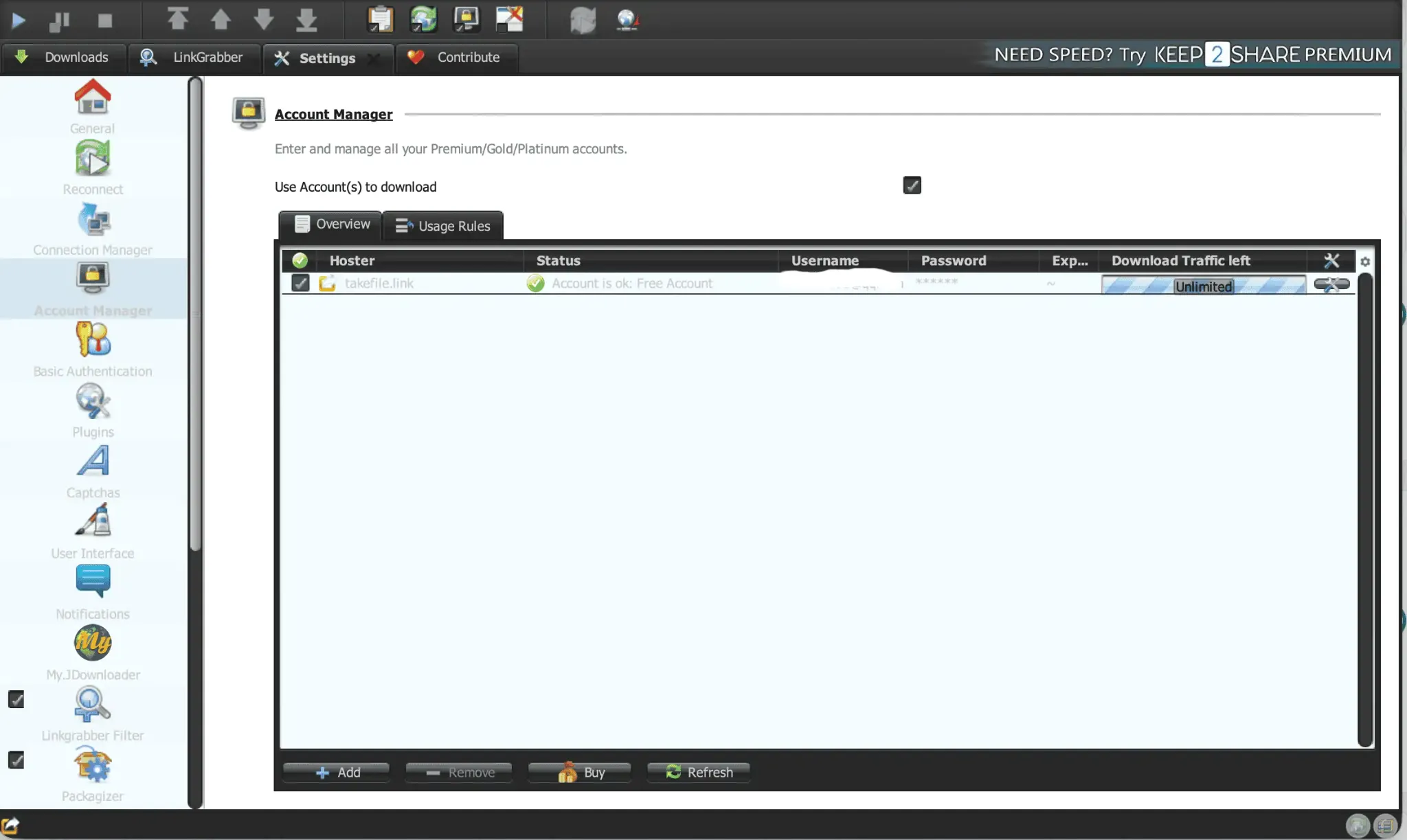
The test account displayed “Free Account” in JD2 while the website showed Premium status. Downloads still worked at the measured rates. These screenshots do not establish why the account label differed, or whether another account would behave the same way.
Account Setup, Voucher Activation & Direct Downloads
The screenshots show registration, plan selection, payment options, a Premium Key field and a Direct downloads setting. Review the final payment total before confirming a purchase.
- Register an account. Sign-up requires an hCaptcha.

TakeFile registration form with email, password confirmation and hCaptcha. - Choose a plan and payment method. The 90-day plan was advertised at $47.99; the tested totals were $53.75 by card and $67.64 by PayPal.
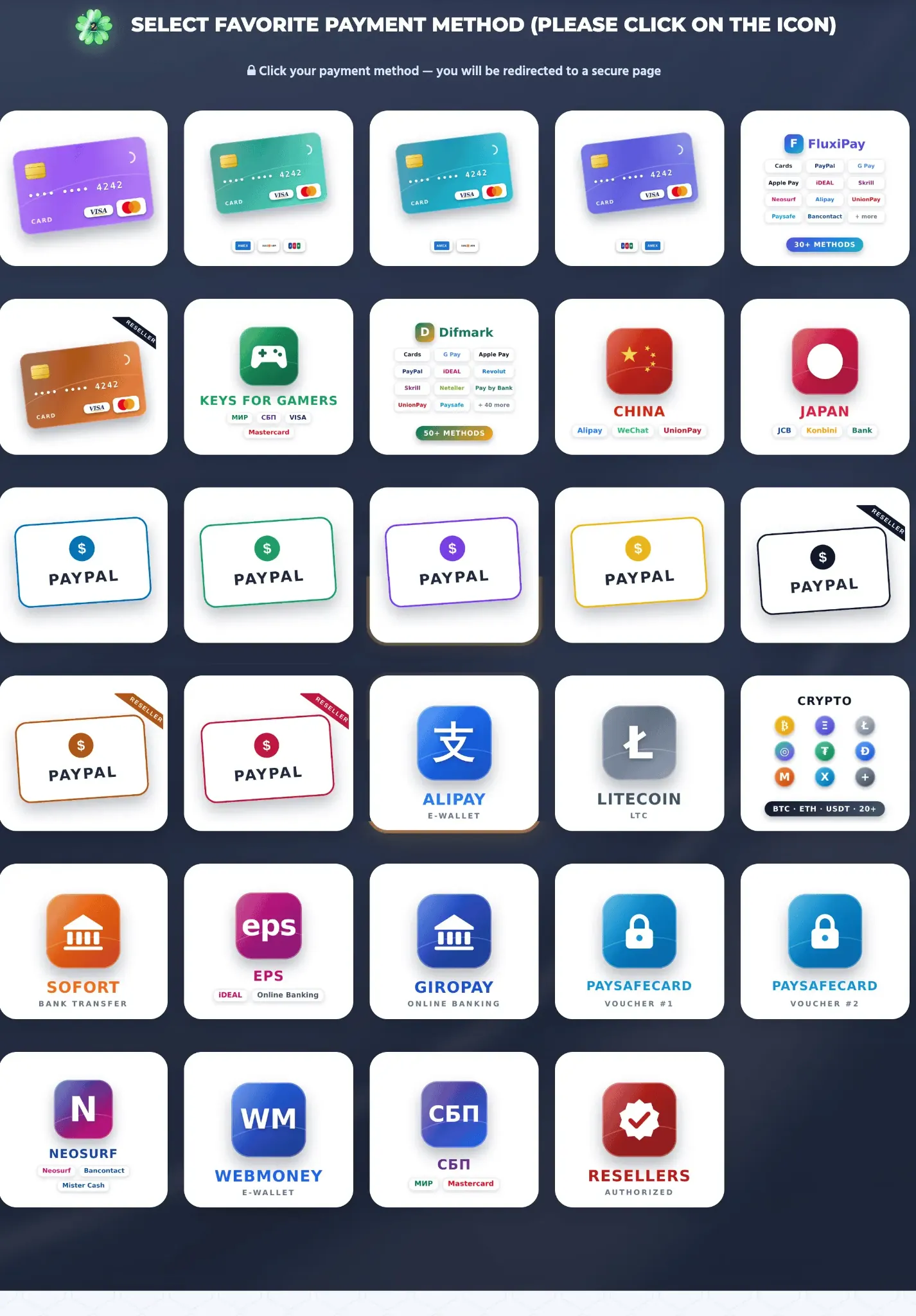
TakeFile payment-method selection; available routes show different checkout totals. - Optionally enable Direct downloads. Turn the account setting on and click SAVE SETTINGS if you want to use direct download links.
- Start downloading. Use the browser, or add your credentials to the JD2 Account Manager.
Enabling "Direct downloads (Premium only)"
The account settings include a Premium-only Direct downloads switch and a SAVE SETTINGS button. To enable direct downloading, switch it on and save the change. The screenshot does not show that this setting is required for Premium transfer speeds.
Activating a Voucher or Reseller Key
If you bought a Premium key from a reseller instead of paying on the site, open your Dashboard and choose "Apply Premium Key." Enter the key to add the subscription period to your account. When buying through third parties, verify the seller's reputation and compare the total cost against the credit card price on TakeFile itself.
See the dashboard screenshot and Apply Premium Key field above.
Adding the account to JDownloader 2
- Open Settings → Account Manager in JDownloader 2.
- Click Add, search for TakeFile, and select takefile.link for the main-domain account.
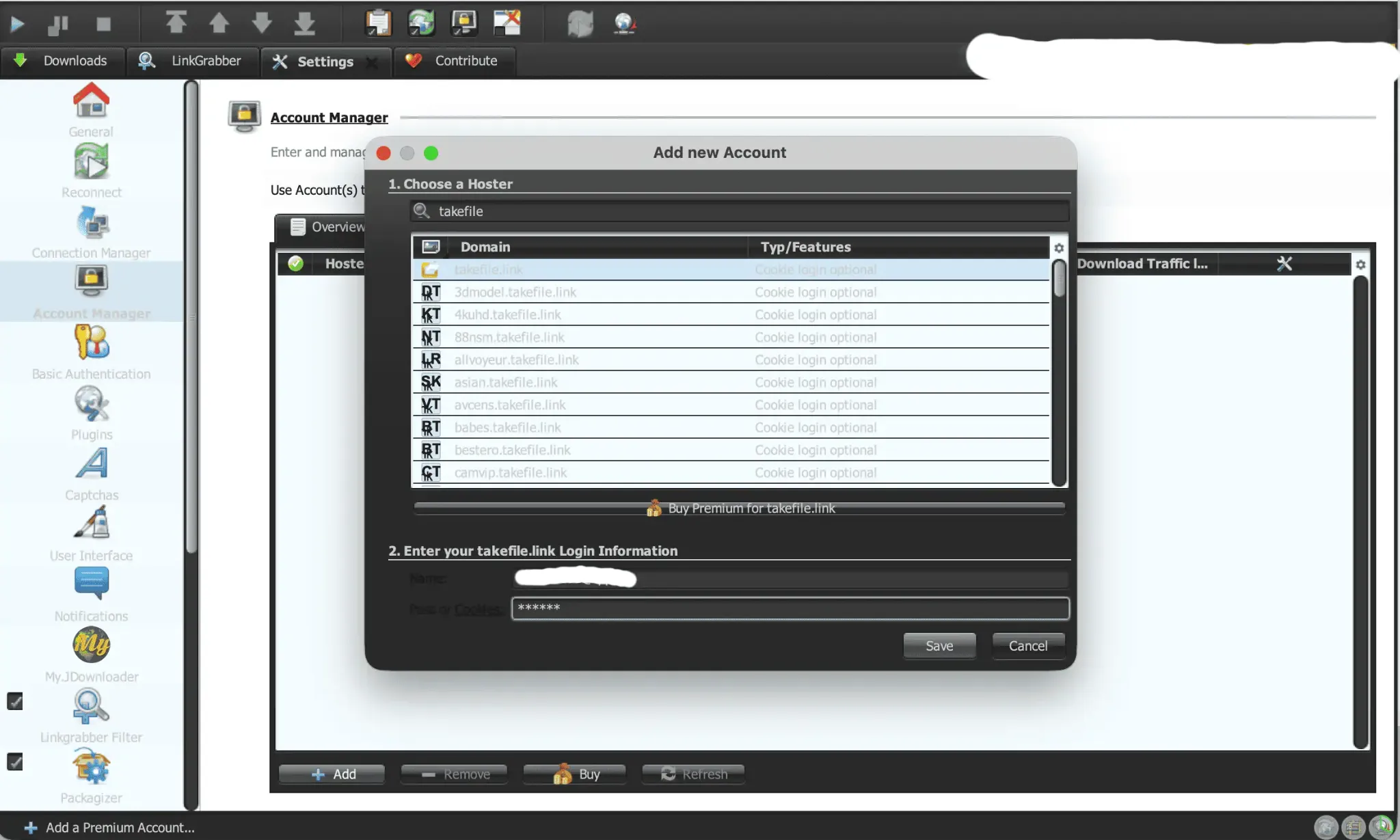
JDownloader 2: select takefile.link and enter the account credentials. - Enter the account login and password, then click Save. In our test, the verification dialog displayed Free Account; the measured downloads still worked.
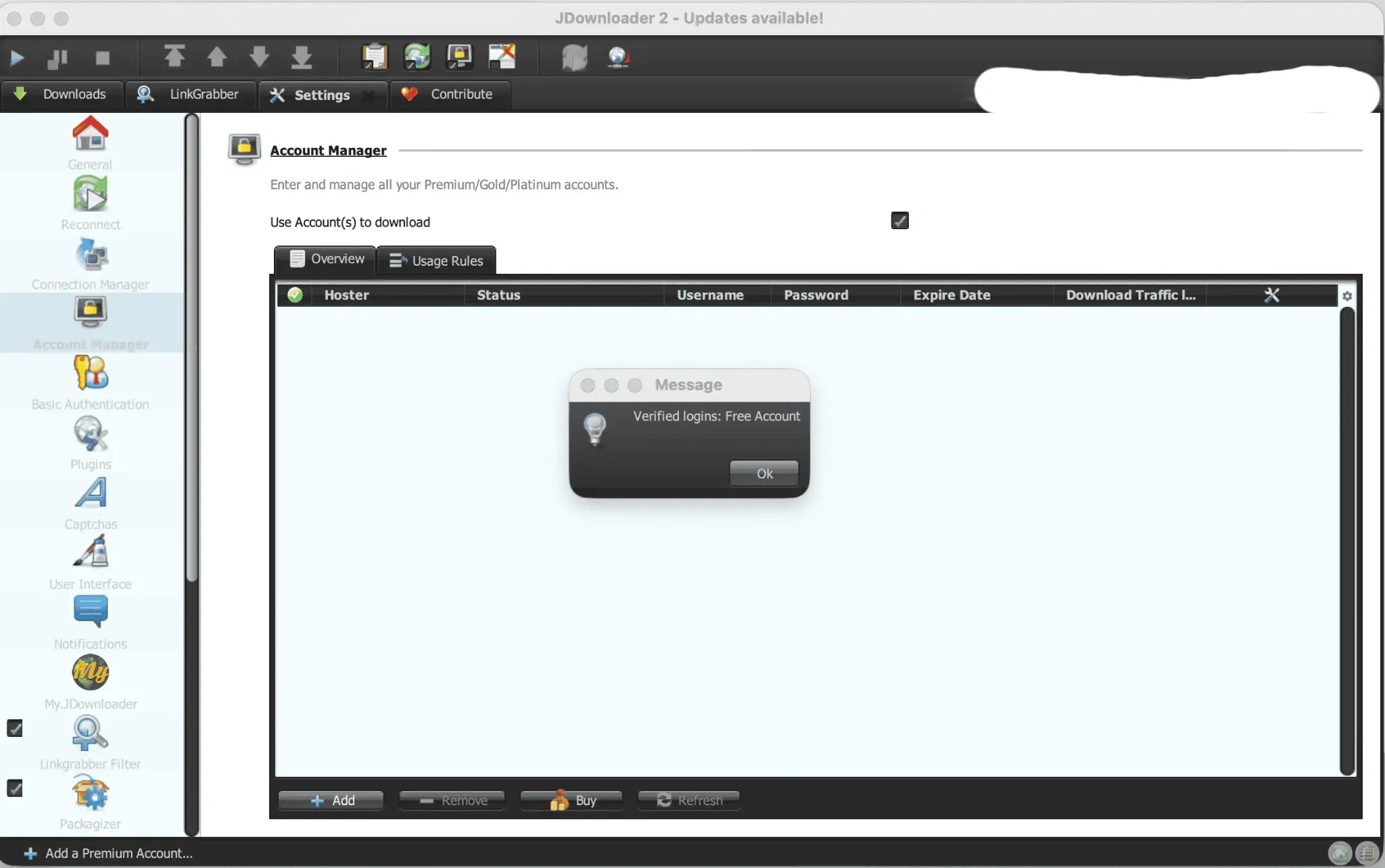
JDownloader 2 verification dialog displayed Verified logins: Free Account.
Frequently Asked Questions (FAQ)
Is the TakeFile free tier usable?
TakeFile’s free tier is usable when its observed 45–55 KB/s speed is sufficient for the file you need. The browser estimated five hours remaining for the approximately 767 MB test file. No ads, countdown or download CAPTCHA appeared in our test.
Does the 65 GB limit reset every day?
TakeFile’s 65 GB allowance applies to a rolling 48-hour period rather than a daily reset. Our test notes confirm that total usage in the preceding 48 hours must remain within 65 GB.
How much extra does PayPal cost?
For the 90-day plan, PayPal adds an $8.60 transaction fee and an $11.05 intermediary fee on top of $47.99, for a total of $67.64. That is $19.65, or about 40.9%, more than the base price. Credit card checkout totals $53.75 (about 12.0% more).
Why does JDownloader 2 show "Free Account" for my Premium login?
The reason JD2 displayed “Free Account” for our TakeFile Premium account was not established in this test. The account nevertheless downloaded successfully at the rates recorded above. Check actual download behavior as well as the account label.
Does "Unlimited" in JD2 mean I can exceed 65 GB?
JD2’s “Unlimited” display is not evidence that TakeFile permits downloads beyond the advertised 65 GB allowance. The 65 GB rolling 48-hour limit remains the relevant restriction.
Does Premium work on subdomains?
A TakeFile main-domain Premium subscription does not include Premium access to its virtual-host subdomains. The pricing screen states that subdomain Premium access is paid separately.
How do I skip the intermediate download page?
In your account settings, toggle "Direct downloads (Premium only)" to green ON and click "SAVE SETTINGS." The setting does not take effect until you save.
How do I redeem a Premium voucher?
Open your Dashboard, click "Apply Premium Key," and enter the code.
Final Verdict & Recommendation
TakeFile Premium performs well where it counts. JDownloader 2 averaged 26.32 MiB/s with a 32.02 MiB/s current combined rate, and Chrome reached 19.1 MB/s with three parallel files. Those are strong results for a hosting service in this class. The weaknesses lie in the purchasing and usage rules, not the raw speed:
- PayPal adds about 40.9% and credit cards about 12.0% over the advertised $47.99.
- The 65 GB allowance operates on a rolling 48-hour window, which rewards planned, spread-out downloading.
- Premium covers takefile.link only, not subdomains.
- A Premium-only Direct downloads option is available in the account settings.
- JD2 displayed Free Account and Unlimited during this test; neither label replaces the website’s plan terms.
| Category | Score (out of 5) | Notes |
|---|---|---|
| Download speed | 4.5 | 32.02 MiB/s current across four JD2 files; 19.1 MB/s in Chrome with 3 files |
| Parallel scaling | 4.5 | Aggregate bandwidth stacks across simultaneous files |
| Pricing transparency | 2.5 | Large checkout surcharges, especially PayPal |
| Quota flexibility | 3.0 | 65 GB rolling 48-hour window, no daily reset |
| Ease of use | 3.5 | Direct-download option and confusing JD2 labels |
| Free tier usefulness | 1.5 | No countdown, but only ~48 KB/s |
These editorial scores are subjective and reflect the conditions observed in this test.
Recommendation: Check that the files you want are covered by the main-domain subscription and that the 65 GB/48-hour allowance meets your needs. Of the two tested 90-day payment routes, card checkout was cheaper. JD2 delivered the higher combined throughput in our four-file test, while Chrome also supported parallel downloads.